Tutorial: Publish Your First AI Article to WordPress in 10 Minutes
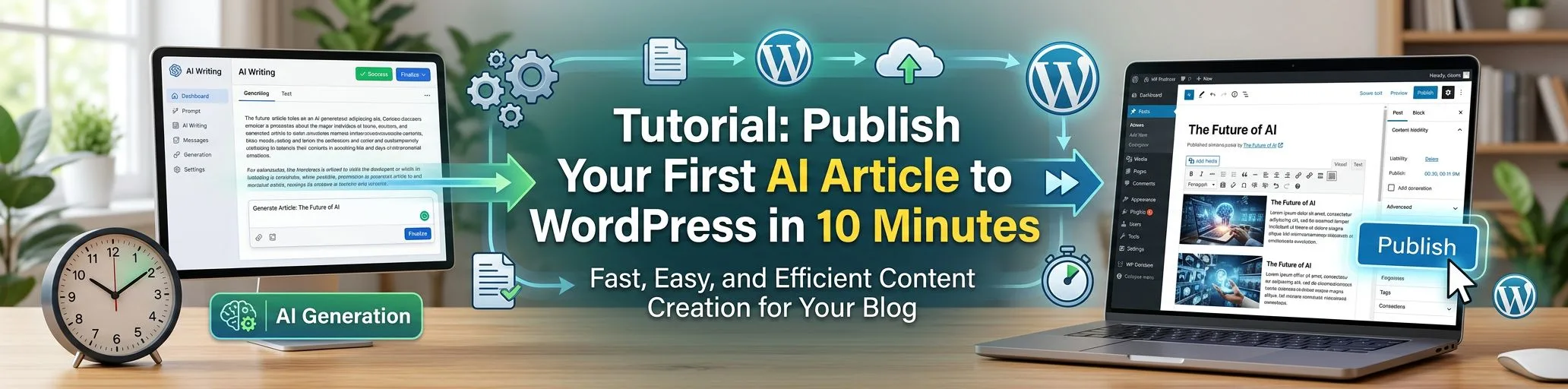
This is the hands-on tutorial: from a fresh install to a fully illustrated, SEO-optimized article live on your WordPress site, in about ten minutes. No theme edits, no server configuration, no coding — just the WordPress REST API and one desktop app. Follow along step by step.
What You’ll Need (2 minutes of prep)
- A WordPress site — any host, WordPress 5.6+ (the REST API and Application Passwords are built in)
- One AI API key. Fastest options:
- Google AI Studio → free-tier Gemini key in ~2 minutes, or
- OpenRouter → one key that unlocks hundreds of models
- The app: install SEO Content Architect from the Microsoft Store (Windows 10/11). The 15-day trial with direct publishing activates automatically on first launch — no card required.
Why your own API key? You pay the AI provider directly — typically a few cents to $1 per full article — with no per-word markup. The full economics are in BYOK vs SaaS pricing.
Step 1 — Add Your AI Key (1 minute)
Open Settings in the app, paste your Gemini (or OpenRouter/OpenAI/Claude) key into the matching field, and save. If you have several providers, add them all — you can pick a model per article later.
Step 2 — Connect WordPress (3 minutes)
- In wp-admin, go to Users → Profile → Application Passwords, name it (e.g.
content-architect), click Add, and copy the generated password — it’s shown only once. - In the app, add your site: site URL + WordPress username + the application password.
- Run the built-in connection test. Green = you’re connected over the standard REST API.
Optional but recommended: install the free bundled SEO Architect Helper plugin on your site. It lets the app write meta title and meta description directly into Yoast SEO, SEOPress, or SiteSEO fields — zero configuration, with its own connection test.
Step 3 — Generate the Article (3-5 minutes)
Create a new article and give it a topic — a keyword or link works best (e.g. best budget espresso machines under $300). Recommended first-run settings:
- Keyword research: on — Perplexity Sonar pulls main keywords, long-tails, and semantic phrases into the generation automatically (how AI keyword research works)
- High Quality Mode: on, word count target ~1,200–1,500
- FAQ section + meta tags: on — structured extras that help rankings
- Images: on — pick DALL-E, Gemini, a Replicate/OpenRouter model, or free Pexels stock
- Internal linking: on — once you have published posts, new articles link to them automatically
- YouTube embedding: on — a relevant video boosts time-on-page
Click generate. In one to two minutes you’ll have a structured article: H1, keyword-mapped H2/H3 sections, FAQ, meta title & description, and images in place.
Step 4 — The Human Pass (2 minutes now, more as you scale)
Don’t skip this — it’s what separates ranking AI content from penalized AI content:
- Fact-check names, numbers, and dates
- Delete any generic filler sentence
- Add one thing only you can add: an opinion, a screenshot, a personal result
The built-in editor handles all of this before anything touches your site.
Step 5 — Publish (30 seconds)
Click Publish (or schedule it). The article travels over the REST API to WordPress — with title, content, images, categories, and SEO meta fields set. Open your site: your first AI-assisted article is live.
Where to Go from Here
You’ve done the manual loop once. Everything after this is scaling the same pipeline:
- Automated topic sources — RSS, Google News, trends feeding your idea queue
- Auto Posting — the schedule-driven, blog-that-writes-itself setup
- Bulk Engine — 30–50 launch articles for a new niche site in one batch
- Social Studio + Distribution Hub — every article becomes 10 social posts across 15 platforms
A real site built entirely on this workflow: en.ns5.club — every article, image, and post produced with the app.
Troubleshooting
Connection test fails → check the site URL includes https://, confirm Application Passwords isn’t disabled by a security plugin (Wordfence and similar sometimes block it — whitelist the REST API for your user).
Article publishes without meta fields → install the SEO Architect Helper plugin and re-run its connection test.
Generation errors → verify the API key is active and has billing/quota at the provider; the free Gemini tier has daily limits.
FAQ
Do I need the trial or a card to follow this tutorial? No card. The trial activates automatically and includes direct publishing to one site. After 15 days, article generation and editing stay free forever — Premium re-enables publishing automation, unlimited sites, and the social features.
Does this slow down my WordPress site? No — generation runs on your PC. WordPress only receives the finished article via its standard API, the same way the mobile app or Jetpack would post.
Can I publish to multiple sites? Yes — Premium supports unlimited WordPress sites, each with its own settings and schedules.
What if I use a page builder (Elementor, etc.)? Articles publish as standard WordPress posts (Gutenberg blocks/HTML), which every theme and builder renders fine.
Ten minutes, one article, zero copy-paste: download SEO Content Architect and see the full feature tour.